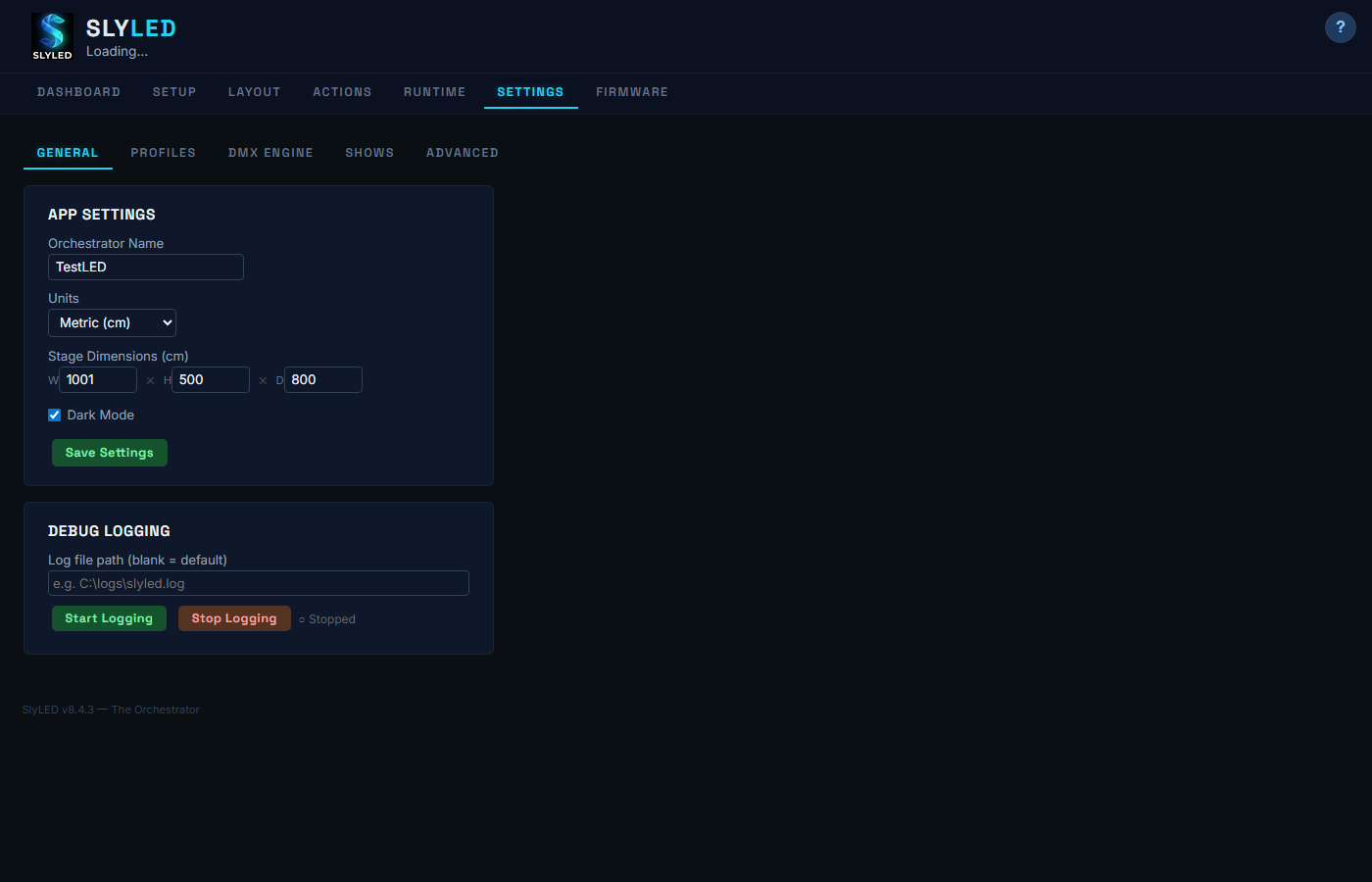
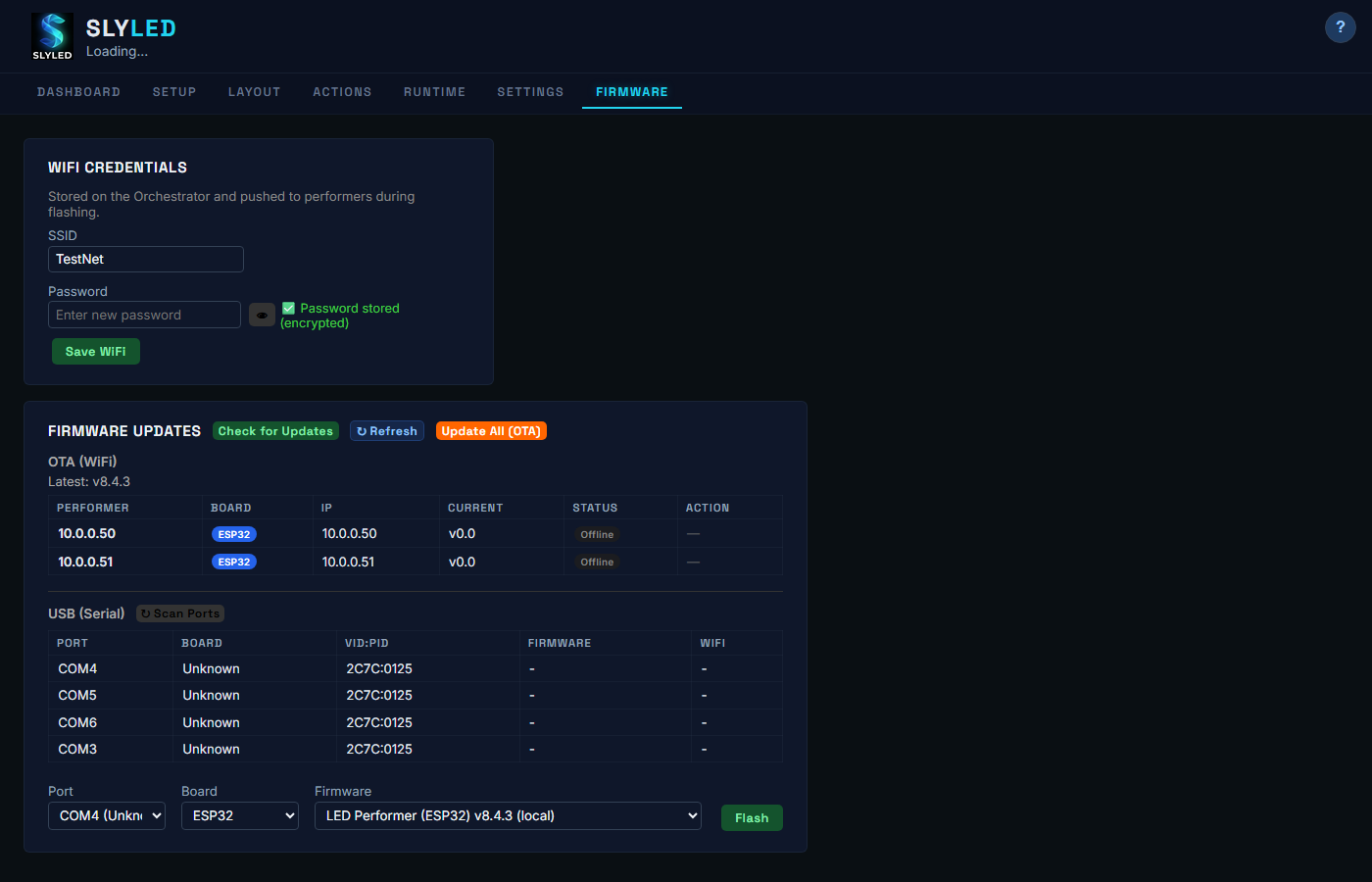
Run SlyLED.exe or SlyLED-Setup.exe. The dashboard opens empty — ready for you to connect hardware.
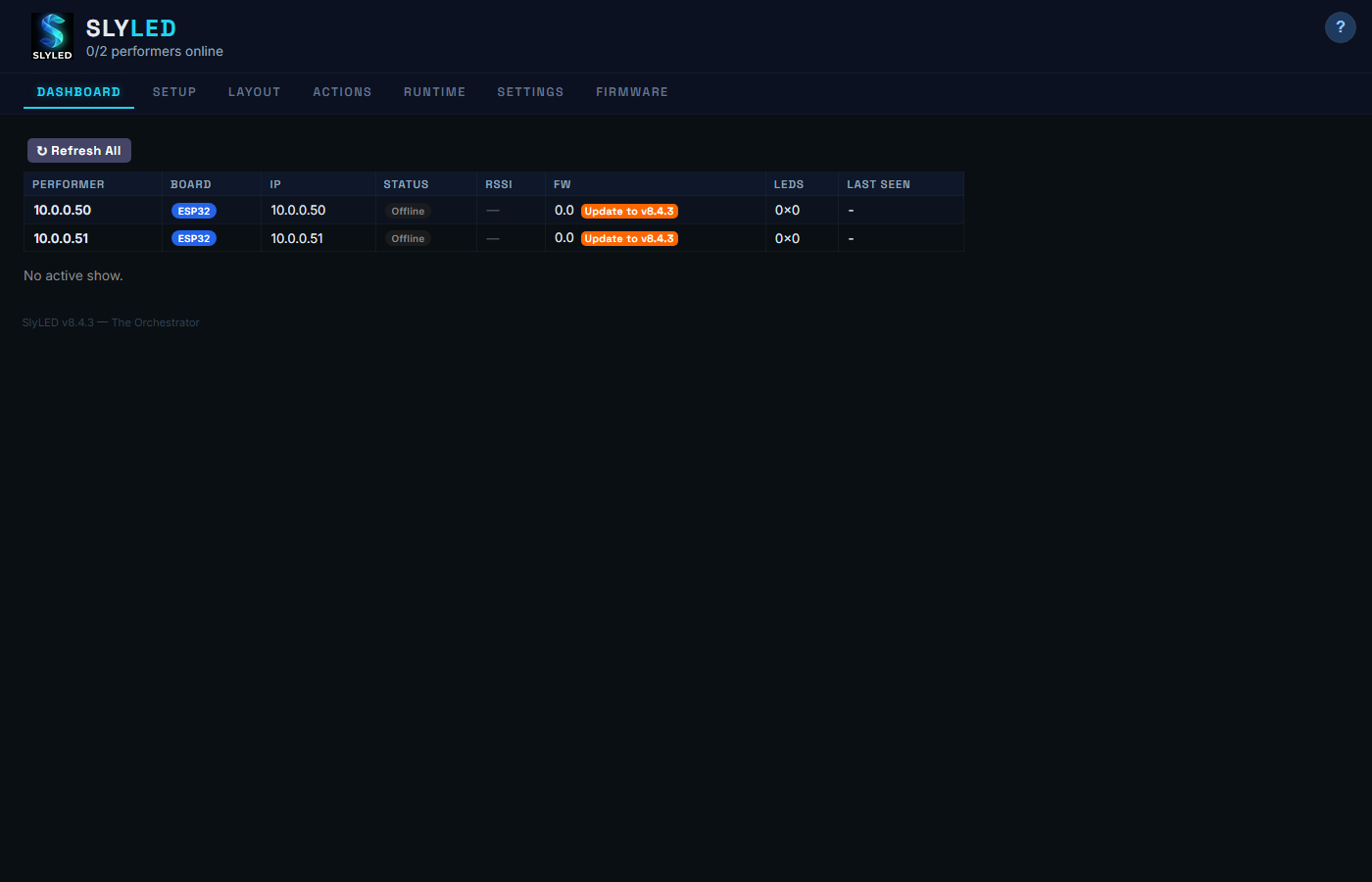
Go to the Firmware tab. Connect your ESP32 via USB, select the COM port, enter WiFi credentials, and click Flash.
Once flashed, the ESP32 serves a config page at its IP address. The Dashboard tab shows the device hostname, firmware version, and active action status.
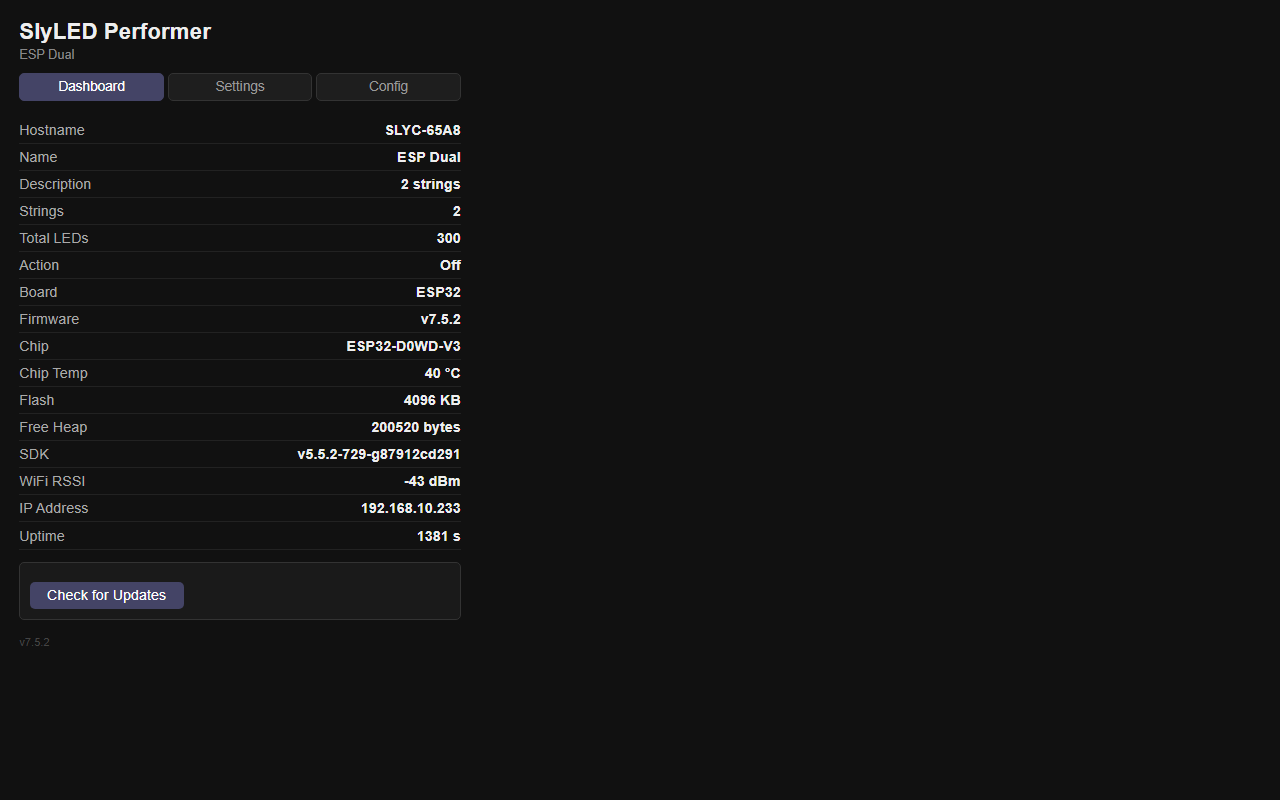
http://192.168.x.x/config — the IP is shown on the SlyLED Setup tab after discovery.On the Settings tab, give your performer a friendly name and description. Set the number of LED strings connected.
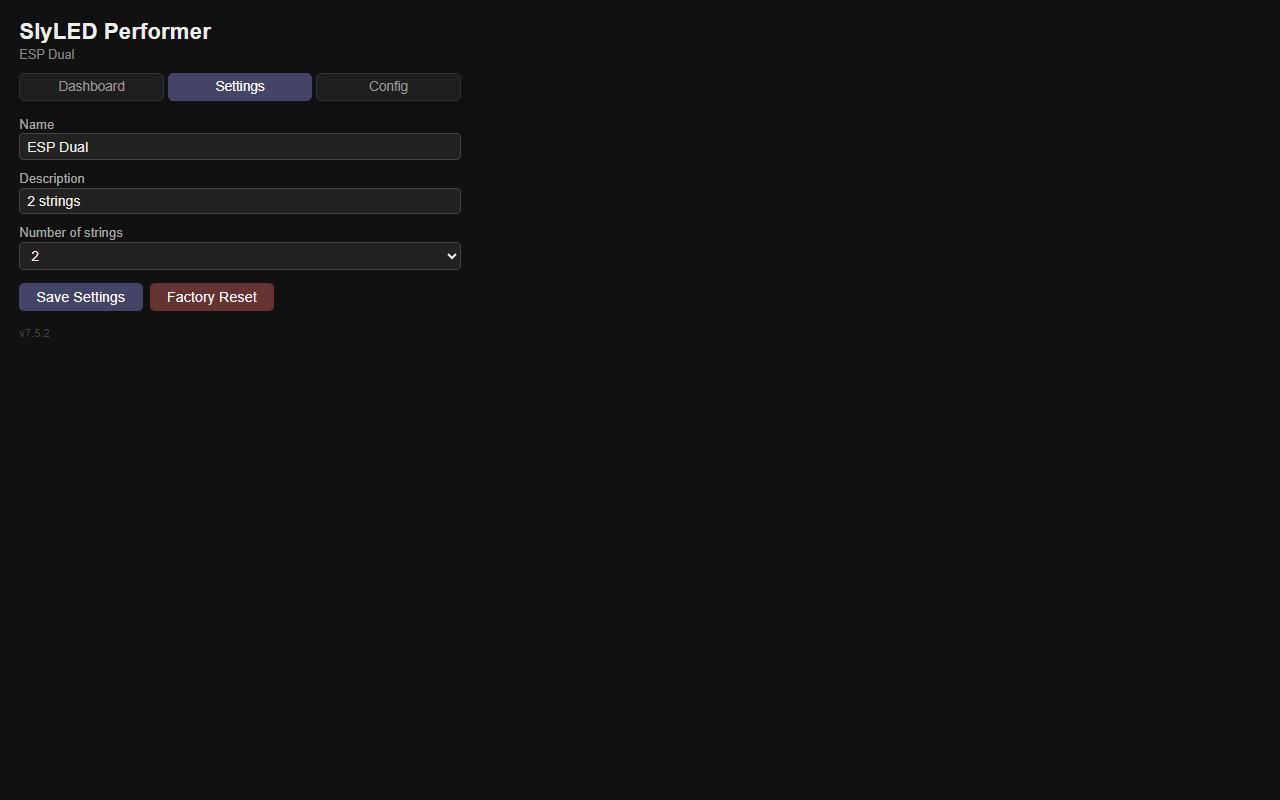
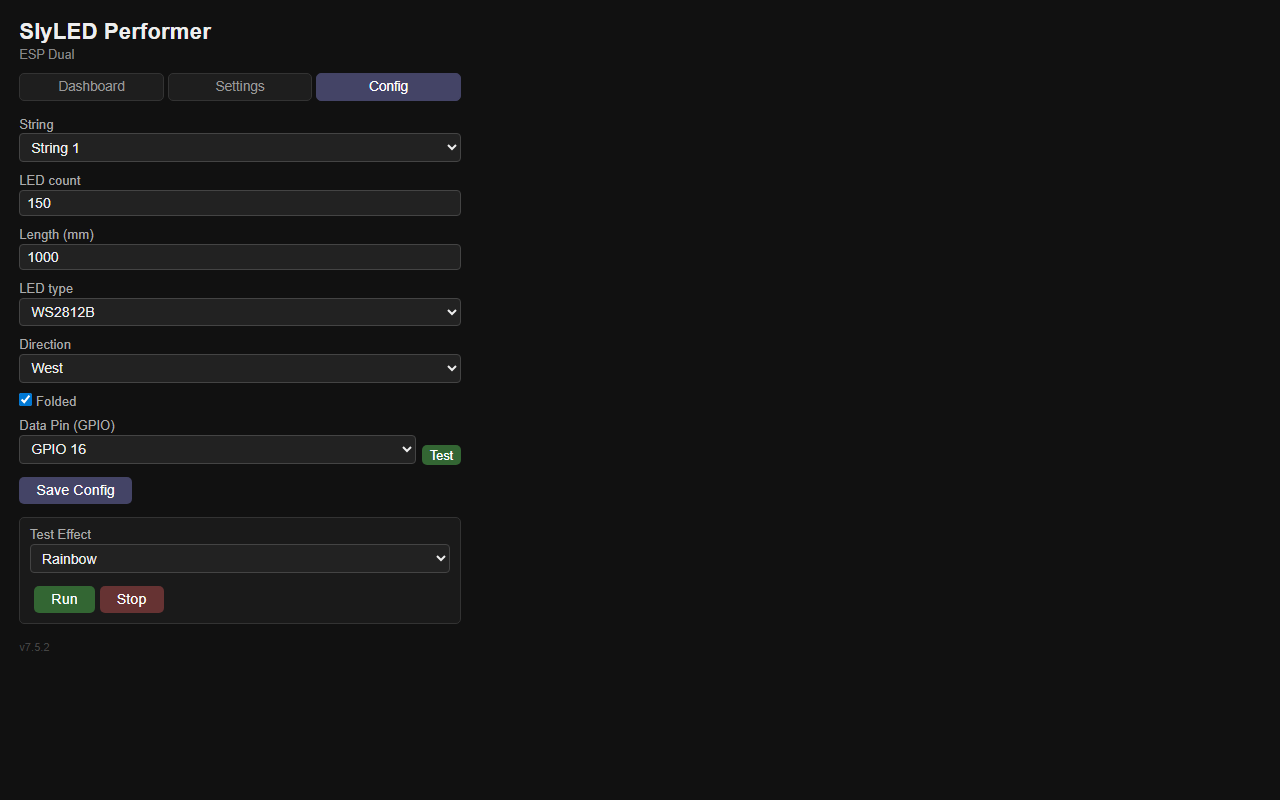
On the Config tab, set each string's LED count, physical length (mm), strip direction, and GPIO data pin. Click Test to verify each string lights up.
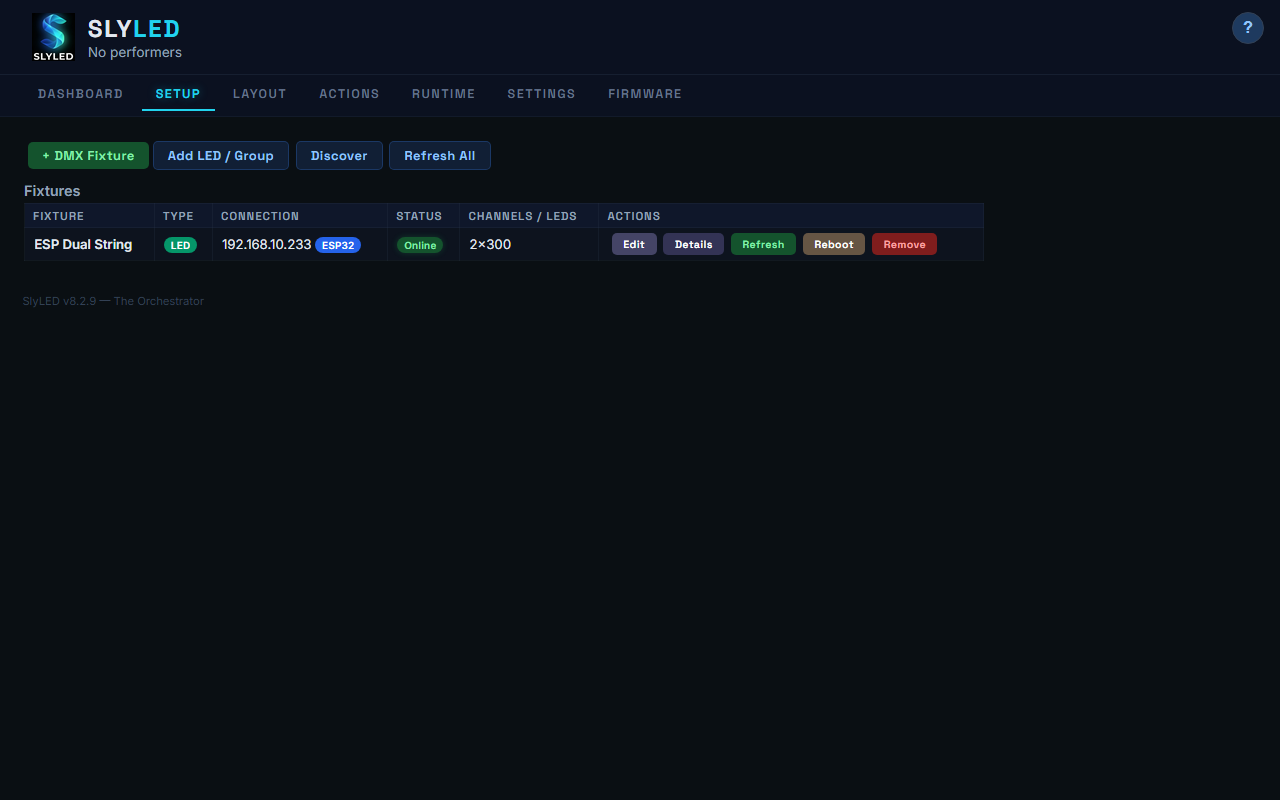
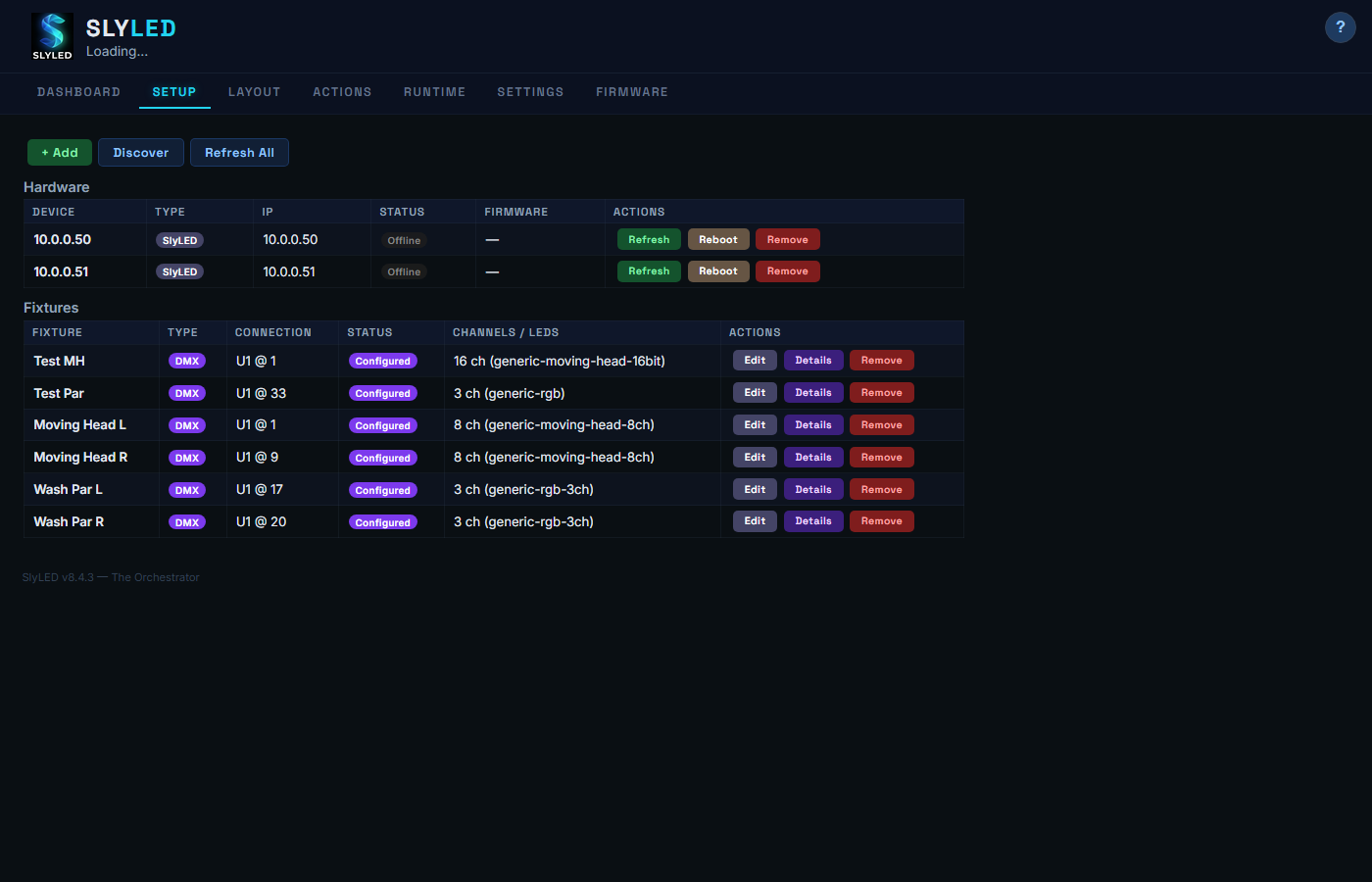
Back on the desktop, go to Setup and click Discover. Your configured ESP32 appears with its name and LED count. Click Add to register it.
Click + DMX Fixture to open the wizard. Type your fixture name and SlyLED searches three sources at once: your local library, the community server at electricrv.ca, and the Open Fixture Library (700+ manufacturers, thousands of fixtures). One search, instant results.
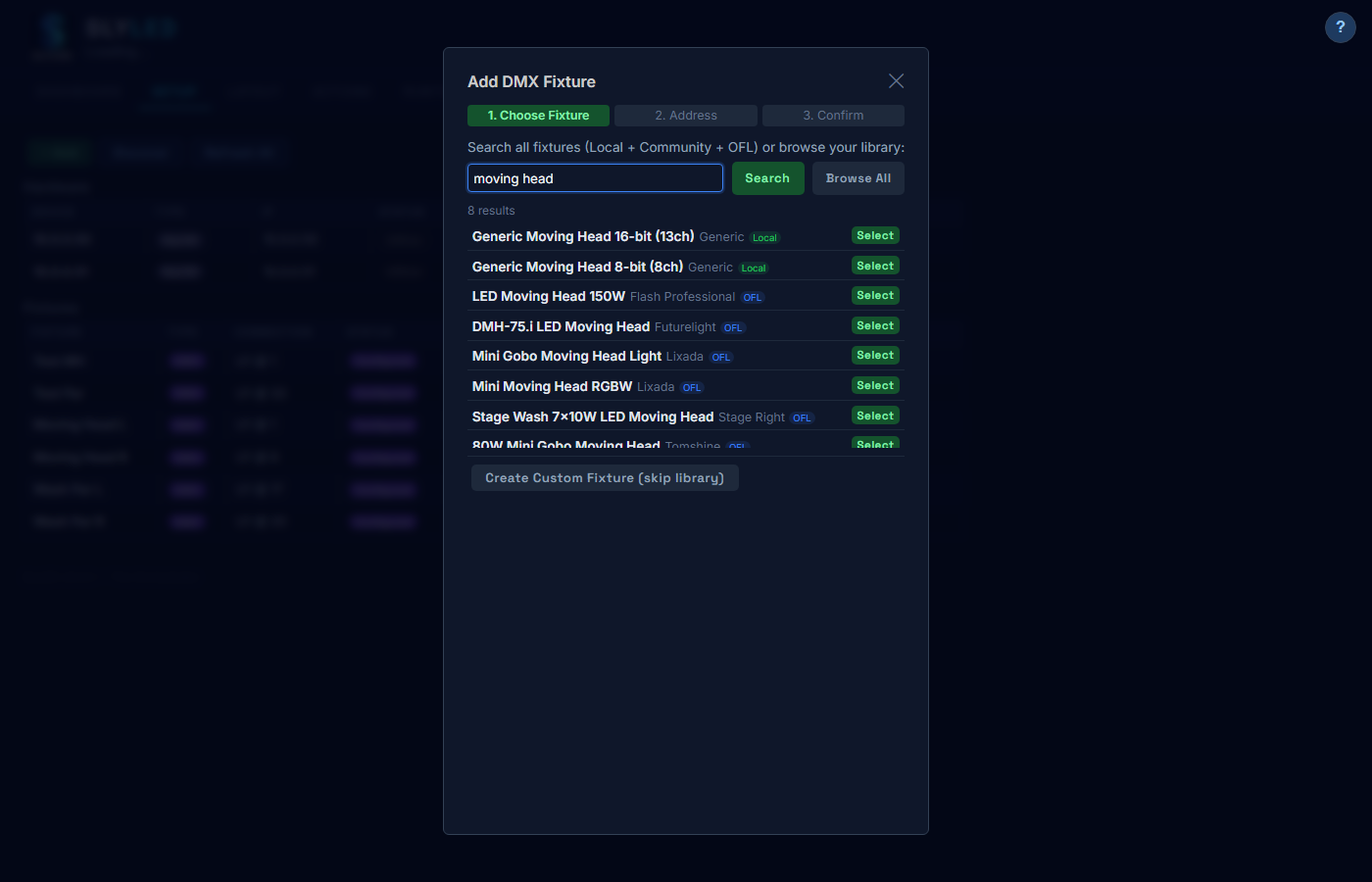
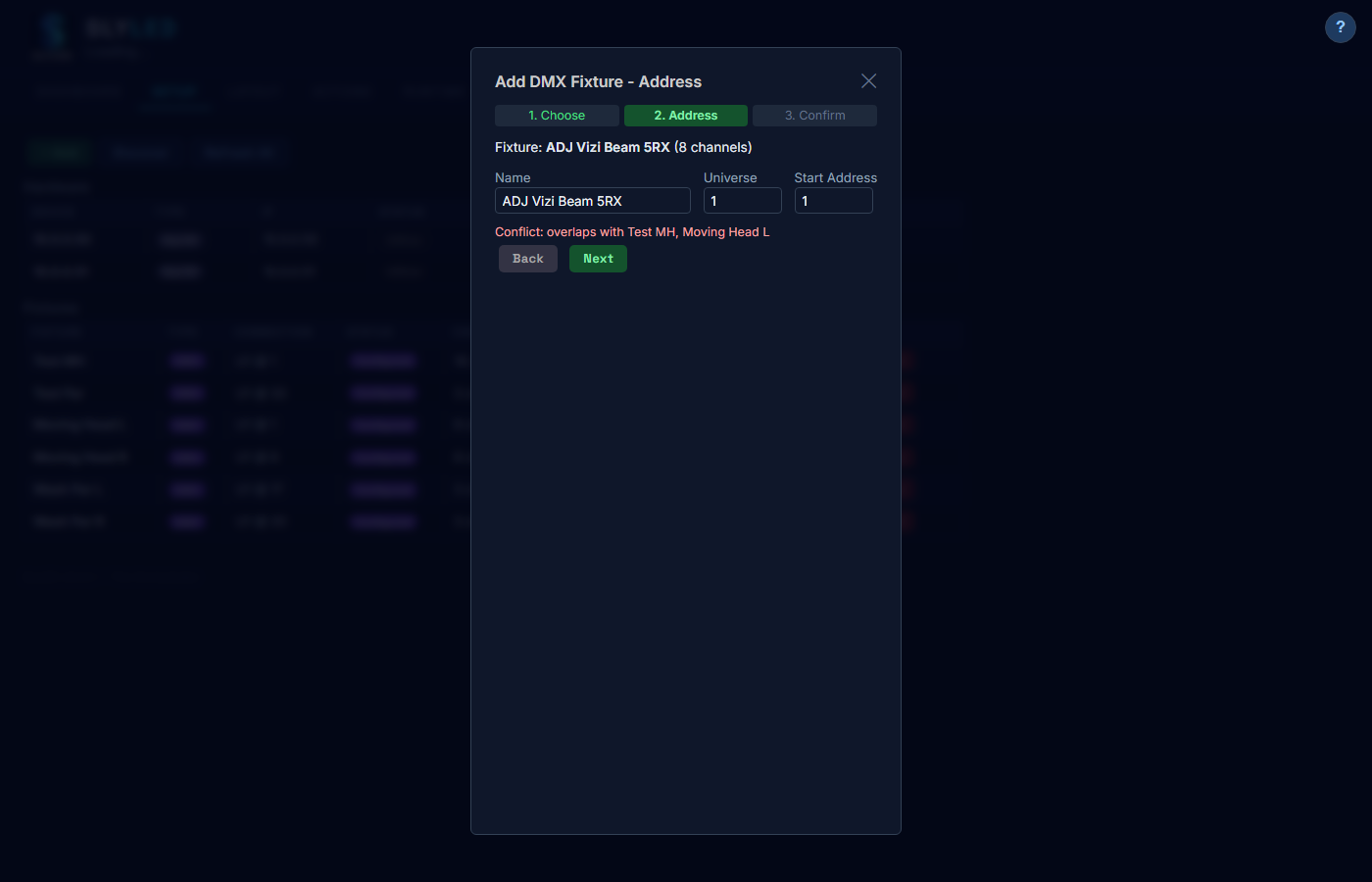
Select your fixture from the results and set the DMX universe and start address. SlyLED checks for address conflicts in real-time — overlapping fixtures are flagged immediately so you never accidentally double-patch.
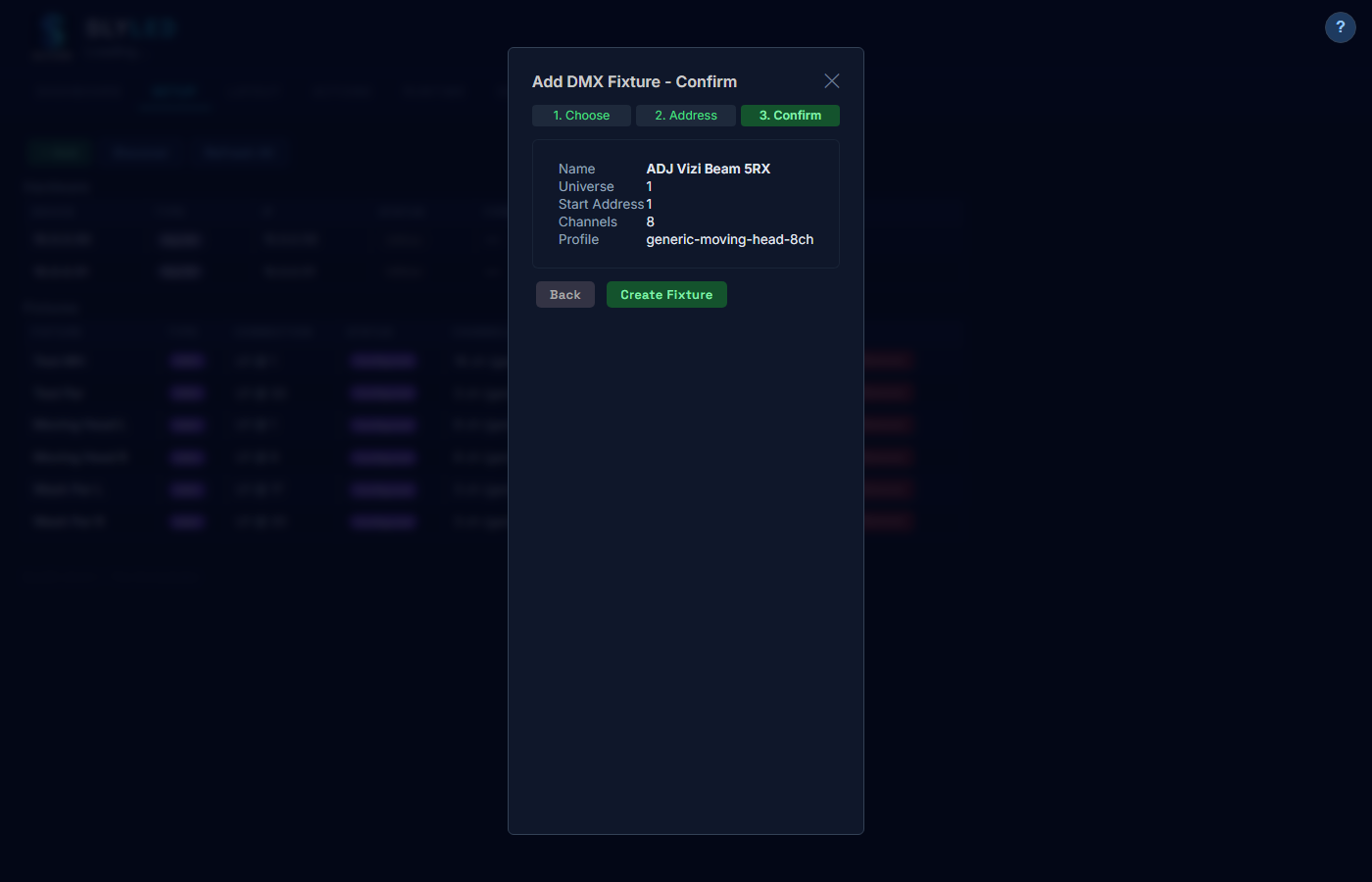
Review the summary — name, universe, address, channel count, and profile — then click Create Fixture. The fixture appears on the Setup tab ready for layout positioning and testing.
The unified fixture library is one of SlyLED's most powerful features:
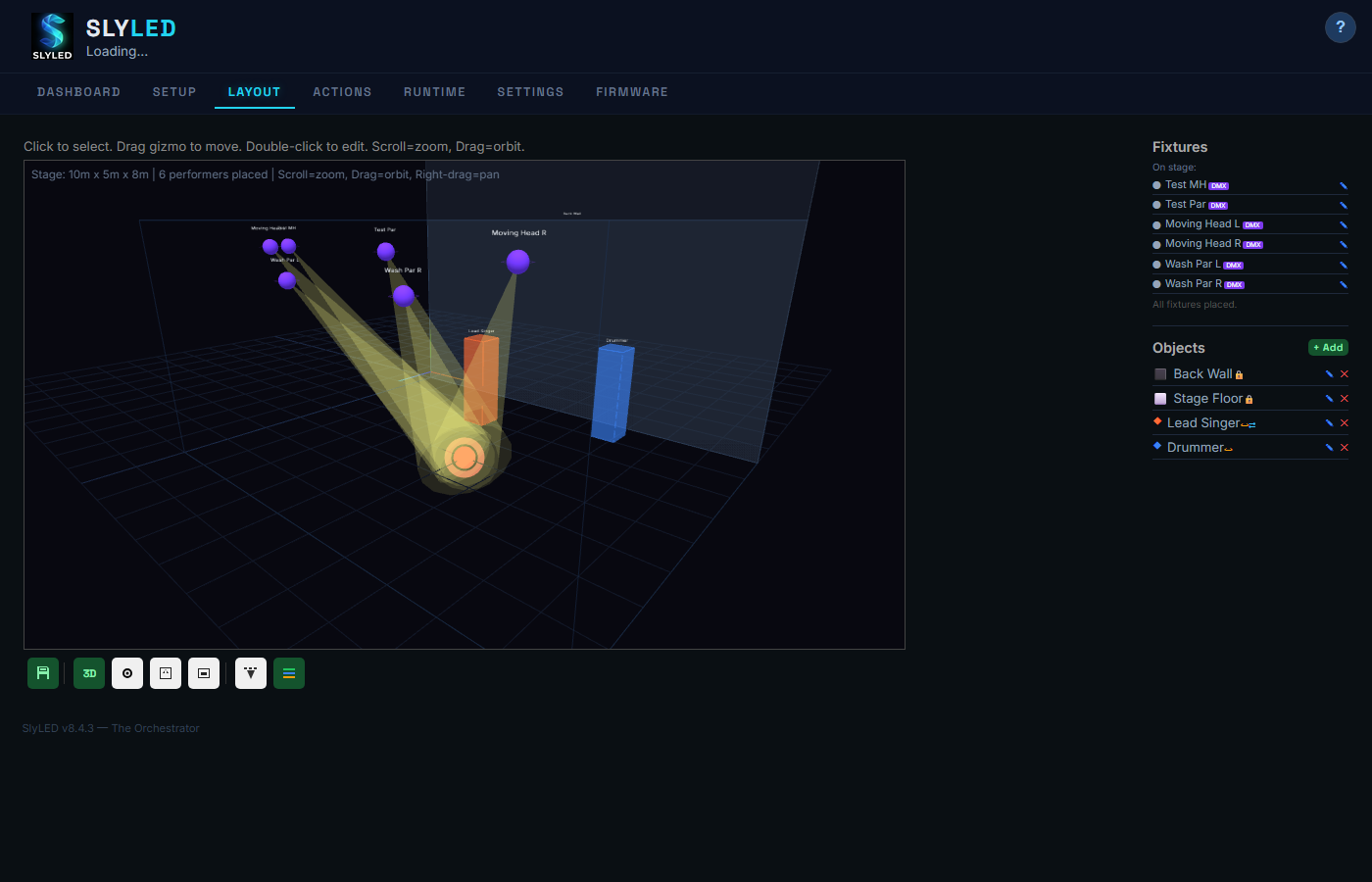
Switch to Layout. Drag fixtures onto the stage. The sidebar lists Objects (renamed from surfaces) with lock, mobility, and patrol icons. LED strings show as colored lines, DMX fixtures show beam cones toward their aim points. Objects can be static (walls, floors locked to stage) or moving (props, performers with patrol motion).
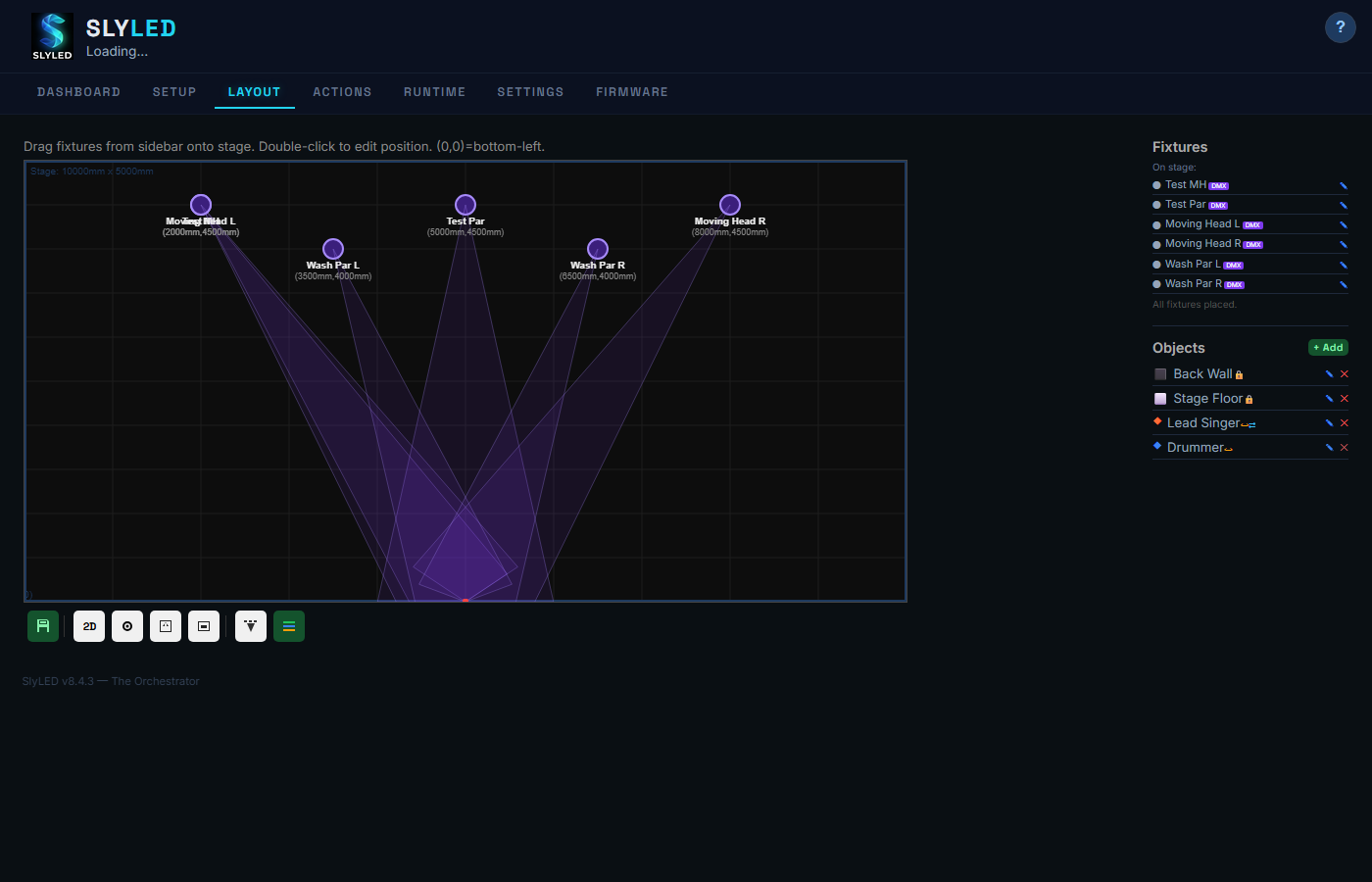
Objects represent physical elements on stage. Walls and floors auto-size to stage dimensions (stage-locked). Moving objects like performers can patrol back-and-forth automatically during playback.
Toggle to 3D for an interactive Three.js scene. Orbit with mouse drag, zoom with scroll. Beam cones render as 3D geometry. Drag aim spheres to redirect beams. Quick-view controls let you recenter, snap to top view, or front view — these auto-switch to 3D mode.
Build your effects library with 19 types including Track: Rainbow, Chase, Fire, Comet, Twinkle, and more. Create spatial effects that sweep across the 3D stage, or use Track to make moving heads follow objects in real-time.
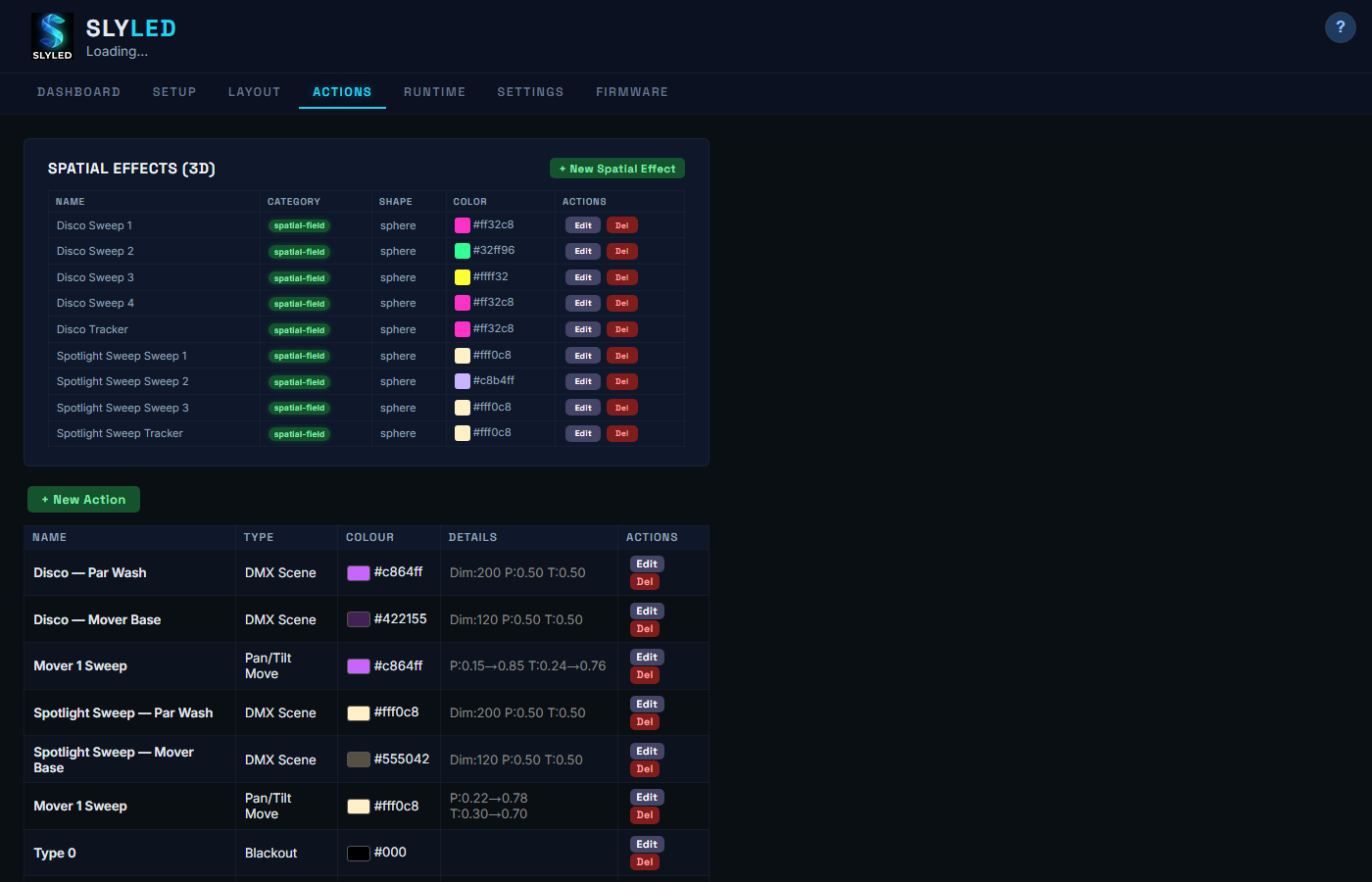
The Track action (type 18) makes DMX moving heads follow moving objects in real-time at 40Hz. The assignment algorithm distributes heads across targets, with cycling when there are more objects than heads.
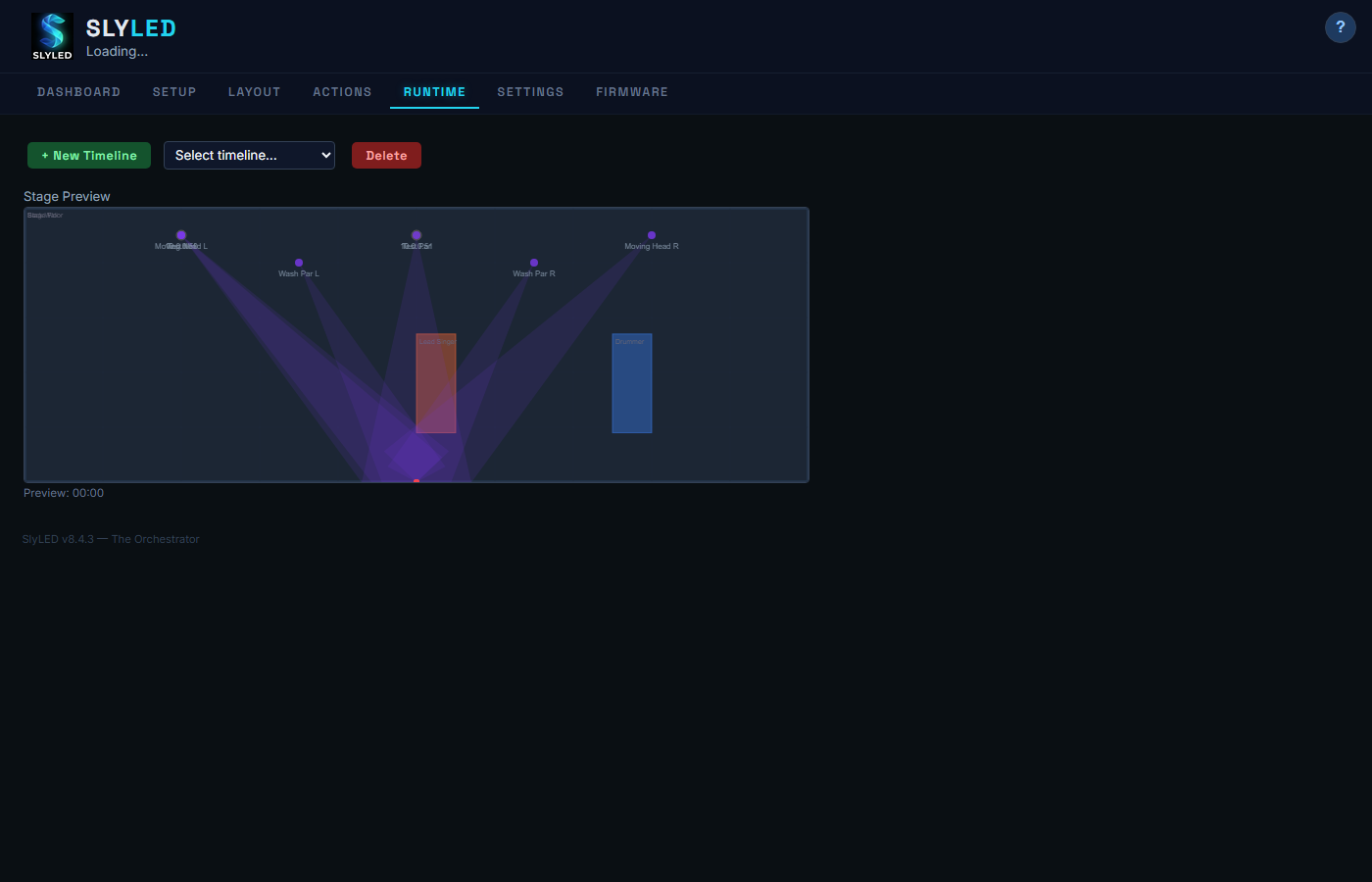
Load a preset show or build a timeline. Click Bake → Sync → Start. The emulator previews LED colors and DMX beam positions in real-time.
Configure Art-Net routing, manage profiles, share fixtures with the community, control groups, and monitor DMX channels live.